
Using Tmux
Introduction
Tmux is a command-line utility that allows shell sessions to persist between different SSH sessions. This means that you can start a Tmux session, run some command, disconnect, and the commands will continue to run in the background. You can then return to the session when you reconnect to the node.
In the case of Discworld, Tmux is useful on the login node to contain interactive job sessions. When commands are run outside of Tmux sessions, a network disconnection can cause these programs to terminate. Start a new session
The following command can be used to start a new Tmux session. The phrase my-session is the name of the session.
tmux new -s my-session
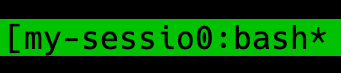
In the bottom right of your display, you should see a truncated version of you session name:
Disconnect a session
Tmux uses keyboard shortcuts to detach a session. To detach a Tmux session, you can press Cntrl+b to enter the Tmux command mode, then d to detach. You should now see yourself return to the shell you were previously in.
Viewing all your sessions
Tmux allows you to have more than one session. Outside of a Tmux session, you can run this command to list all your running sessions:
[z3141592@discworld0 ~]$ tmux ls
my-session: 1 windows (created Mon Feb  2 10:53:23 2026)
Resuming a session
You can reattach to a Tmux session using the session name. my-session is the name of the session created earlier. a is short for attach.
tmux a -t my-session
You can use a shorthand version of this command to quickly re-attach to your last attached session:
tmux a
You should now see your terminal show the screen of this session.
Scrolling in a session
Similarly to detaching a session, you can use commands and keyboard shortcuts to scroll your Tmux session. Firstly, enter command mode by pressing Cntrl+b, then press the [ key. In the top right, you should see the line counter.

Once in this mode, you can use the Up, Down, Left, and Right arrow keys to move the cursor around. To exit scrolling mode, you can press the q key (q for quit).